

Download Microsoft Excel – Powerful Spreadsheet Software for Mac
Overview
Microsoft Excel for Mac remains the gold standard for anyone who works with numbers, tables, or visual data. Whether you’re a student crunching grades, a small‑business owner tracking cash flow, or a data analyst building complex models, Excel delivers a reliable, secure, and highly customizable environment. The 2024 Mac edition builds on decades of innovation, offering a clean, user‑friendly interface that feels native to macOS while preserving the depth of the Windows version.
Real‑time collaboration through Microsoft 365 means teammates can edit the same workbook simultaneously, with changes saved instantly to OneDrive or SharePoint. Built‑in AI helpers such as “Ideas” surface insights, suggest charts, and even draft formulas based on plain‑language prompts. Excel’s extensive library of functions—from simple SUM and AVERAGE to advanced XLOOKUP, LET, and dynamic arrays—lets you transform raw data into actionable intelligence in minutes.
The application also supports powerful automation via macros and the new Office Scripts, reducing repetitive tasks to a single click. In short, Excel for Mac is not just a spreadsheet program; it’s a complete data‑management platform that integrates seamlessly with the broader Microsoft ecosystem, ensuring your work stays connected, up‑to‑date, and ready for any analytical challenge.
Core Features
- Advanced Formulas & Functions: Dynamic arrays, XLOOKUP, LET, and AI‑driven suggestions streamline complex calculations.
- Data Visualization: Over 50 chart types, including map charts, sparklines, and 3‑D visualizations, help turn numbers into stories.
- PivotTables & PivotCharts: Summarize massive data sets with drag‑and‑drop fields, slicers, and interactive charts.
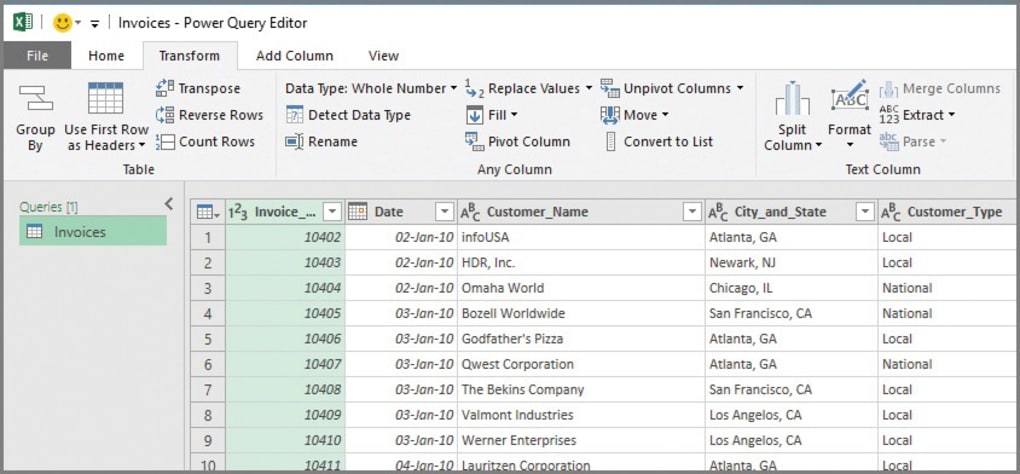
- Automation Tools: Recordable macros, Office Scripts, and Power Query for data cleaning and repetitive tasks.
- Real‑Time Collaboration: Co‑authoring via Microsoft 365, with changes synced instantly across OneDrive and SharePoint.
- Data Validation & Conditional Formatting: Enforce input rules and highlight key trends automatically.
- Integration with Microsoft 365: Seamless links to Word, PowerPoint, Teams, and Outlook for end‑to‑end workflow.
- AI‑Powered Insights: “Ideas” feature analyzes data ranges, proposes charts, and recommends formulas.
- Secure Cloud Storage: Automatic version history, encryption at rest, and compliance with GDPR, ISO, and SOC standards.
- Cross‑Platform Compatibility: Files open identically on Windows, iOS, Android, and web versions of Excel.
These capabilities make Excel a versatile tool for everything from budgeting and invoice tracking to scientific research and financial modeling. The combination of deep analytical power and an intuitive UI means you can start with a simple table and, as your needs grow, unlock increasingly sophisticated features without leaving the application.
Installation & First‑Run Guide
Getting Microsoft Excel up and running on your Mac is straightforward. Begin by visiting the Microsoft 365 download page and signing in with your Microsoft account. If you already have a subscription, choose “Install Office” and select the Mac version. The installer (a .pkg file) will prompt you for administrator permission; after granting access, the package extracts and places Excel in the Applications folder.
When you launch Excel for the first time, you’ll be greeted by a welcome screen that offers a quick tour of the Ribbon, the formula bar, and the new “Ideas” pane. Sign in again to activate your license and enable cloud syncing. If you prefer a standalone purchase, you can buy a perpetual license from the Mac App Store, though the subscription model provides continuous updates and access to the latest AI features.
After activation, customize your workspace by selecting “Excel > Preferences” from the menu bar. Here you can set default fonts, adjust calculation options (automatic vs. manual), and configure AutoSave to keep your files safely stored on OneDrive. For new users, the “Templates” gallery offers ready‑made budgets, calendars, and project trackers—simply click a template, replace placeholder data, and you’re ready to go.
To maximize productivity, explore the “Learn” tab on the Ribbon. Microsoft provides short video tutorials that cover everything from basic cell formatting to creating complex PivotTables. You can also enable the “Tell Me” search box for instant help with commands or formulas. Once you’re comfortable, try recording a macro: go to “View > Macros > Record Macro,” perform a repetitive task, stop recording, and assign the macro to a keyboard shortcut. This simple automation can save hours of manual work over time.
Compatibility, Pros & Cons, FAQ & Final Verdict
System Compatibility
Microsoft Excel for Mac requires macOS 10.14 (Mojave) or later, with optimal performance on macOS 11 (Big Sur) and macOS 12 (Monterey). The application runs natively on Apple Silicon (M1, M2) thanks to a universal binary, delivering faster calculations and lower power consumption compared with older Intel‑only builds. Minimum hardware specs include a 64‑bit processor, 4 GB RAM (8 GB recommended for large data sets), and at least 10 GB of free storage for the app and temporary files.
Pros & Cons
- Pros:
- Industry‑leading function library and AI‑assisted insights.
- Seamless real‑time collaboration with Microsoft 365.
- Robust automation via macros and Office Scripts.
- Full compatibility with Windows, iOS, Android, and web versions.
- Secure cloud storage with version history and compliance certifications.
- Cons:
- Subscription cost may be higher than some single‑purchase alternatives.
- Learning curve for advanced features such as Power Query and dynamic arrays.
- Occasional UI inconsistencies between Mac and Windows ribbons.
- Heavy workbooks can be memory‑intensive on older Mac models.
Frequently Asked Questions
Can I use Microsoft Excel for Mac offline?
Yes. Once installed and activated, Excel works fully offline. Your files will sync to OneDrive when you reconnect to the internet.
Is Excel for Mac included in a Microsoft 365 subscription?
Absolutely. A personal or business Microsoft 365 subscription gives you the latest version of Excel for Mac, along with Word, PowerPoint, Outlook, and 1 TB of OneDrive storage.
How does Excel on Mac handle large data sets?
Excel supports up to 1 048 576 rows and 16 384 columns per sheet. For very large data, enable 64‑bit calculation mode and consider using Power Query to load only needed columns.
Can I share Excel files with Windows users without losing formatting?
Yes. Excel files (.xlsx) are fully compatible across platforms. Features like Conditional Formatting, Charts, and PivotTables render identically on Windows.
What security measures protect my data in Excel?
Data is encrypted at rest and in transit when stored on OneDrive. You can also apply password protection, sensitivity labels, and two‑factor authentication via your Microsoft account.
Conclusion & Call to Action
Microsoft Excel for Mac stands out as the most comprehensive spreadsheet solution on the market, blending powerful analytics, real‑time collaboration, and a familiar macOS experience. While the subscription model represents an ongoing cost, the continual delivery of AI features, security updates, and cross‑platform integration justifies the price for professionals and power users alike. If you need a tool that can grow from simple budgeting to advanced financial modeling, Excel is the answer.
Ready to boost your productivity? Download Microsoft Excel for Mac today and start turning raw data into meaningful insights—securely, efficiently, and collaboratively.
Overall rating: 4.6/5 – Excel for Mac delivers a professional-grade spreadsheet environment with robust features, seamless cloud integration, and excellent cross‑platform compatibility. Minor drawbacks include the subscription cost and occasional UI quirks, but the benefits far outweigh these concerns.







